 By Tron Event Agency
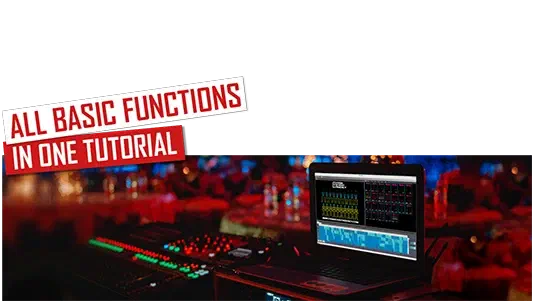
The newest LED Strip Studio Tutorial
Link to this section: The newest LED Strip Studio TutorialHello Tron fans,
In this blog, we are going to speak about all functions that our LED Strip Studio software has and how to use them.
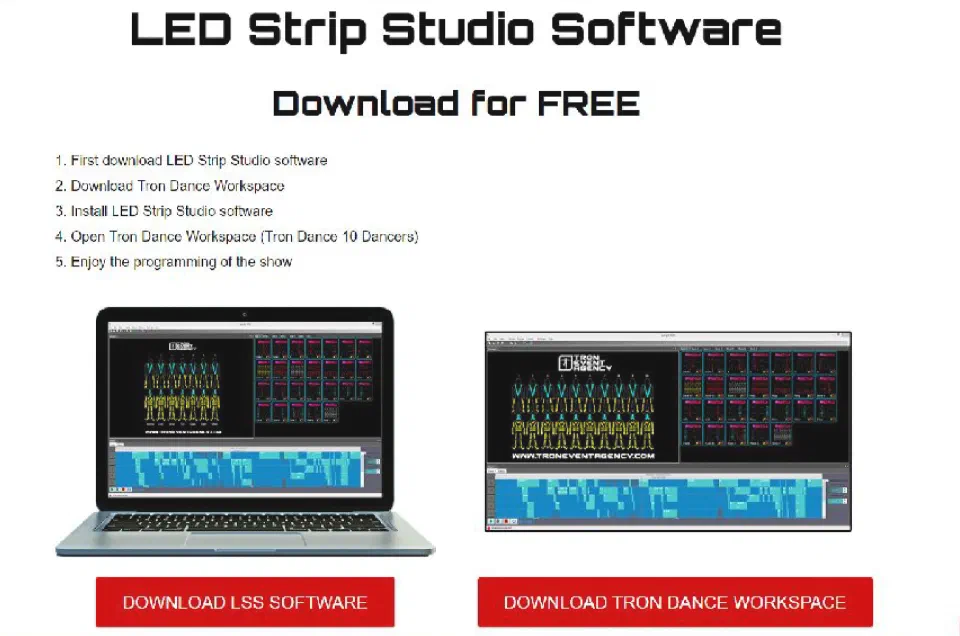
Still don’t have the LSS software? Download it from HERE, open the Tron workspace and try everything by yourself now!
Let’s check the video, how we do it!
Timing:
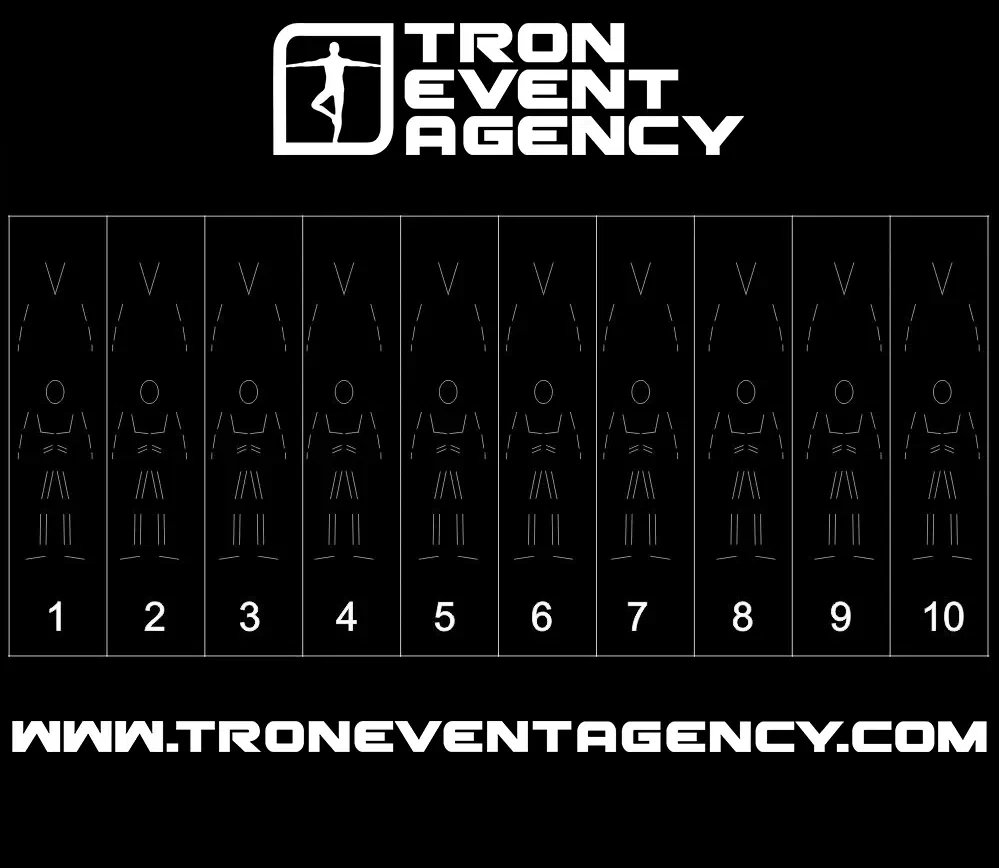
00:05 – 01:00 – Introduction to the workspace – in this part, you can see what the workspace looks like and how you can adjust it for your personal usage.
01:01 – 01:33 – How to insert a background picture? – You can see, how to load the background picture from your PC directly to the workspace.
01:34 – 02:00 – How to insert the music? – With simple steps, you can add your favorite song to the timeline. Do you have just .mp3? No problem, our software will automatically convert it to .wav.
02:01 – 05:33 – How to create the scenes? – In this part of the video, we introduce you to multiple ways to create the scenes in LSS software.
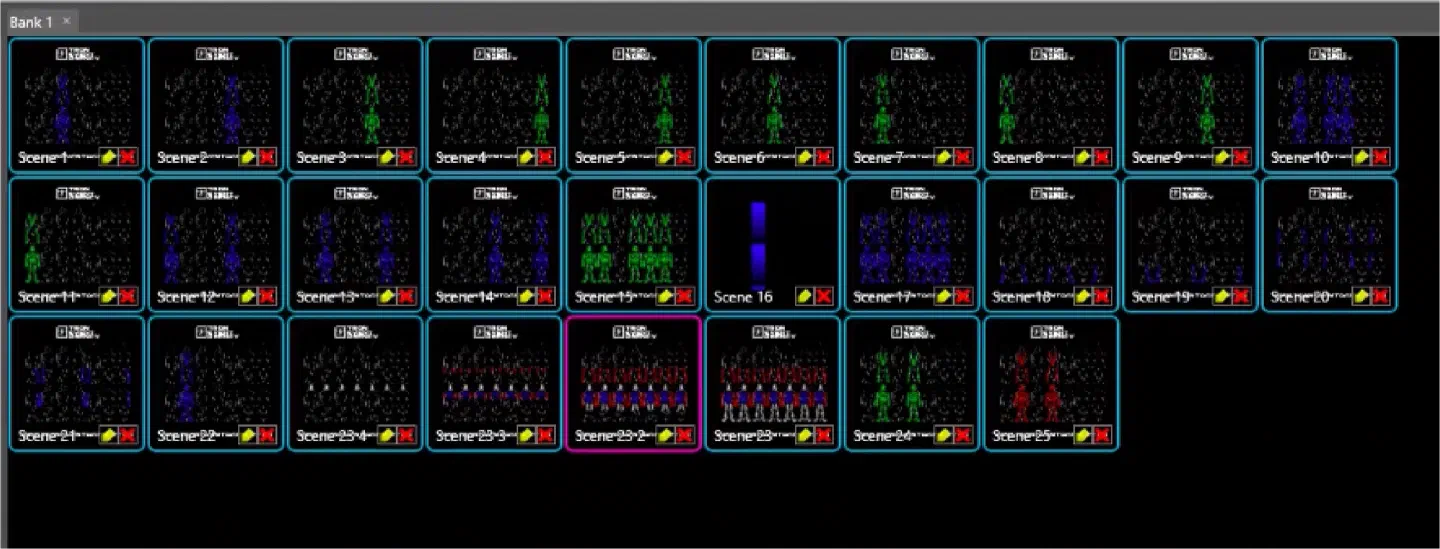
05:34 – 05:56 – How to rename the scene? – We will show you, how to rename the effect, so you will always know where to find them.
05:57 – 08:28 – How to work with the timeline? – What are the basic rules when you work with the timeline? We will show you the main functions.
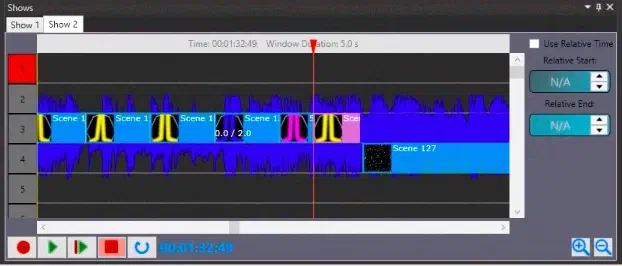
08:29 – 10:09 – How to create a strobe effect? – a very useful feature. You can create an interesting effect and adjust the frequency of suit blinking.
10:10 – 11:21 – How to use the selection groups? – This feature helps you to program faster and easier.
11:22 – 12:36 – How to copy the scenes? – useful feature, how you can copy the effect and use it afterwards.
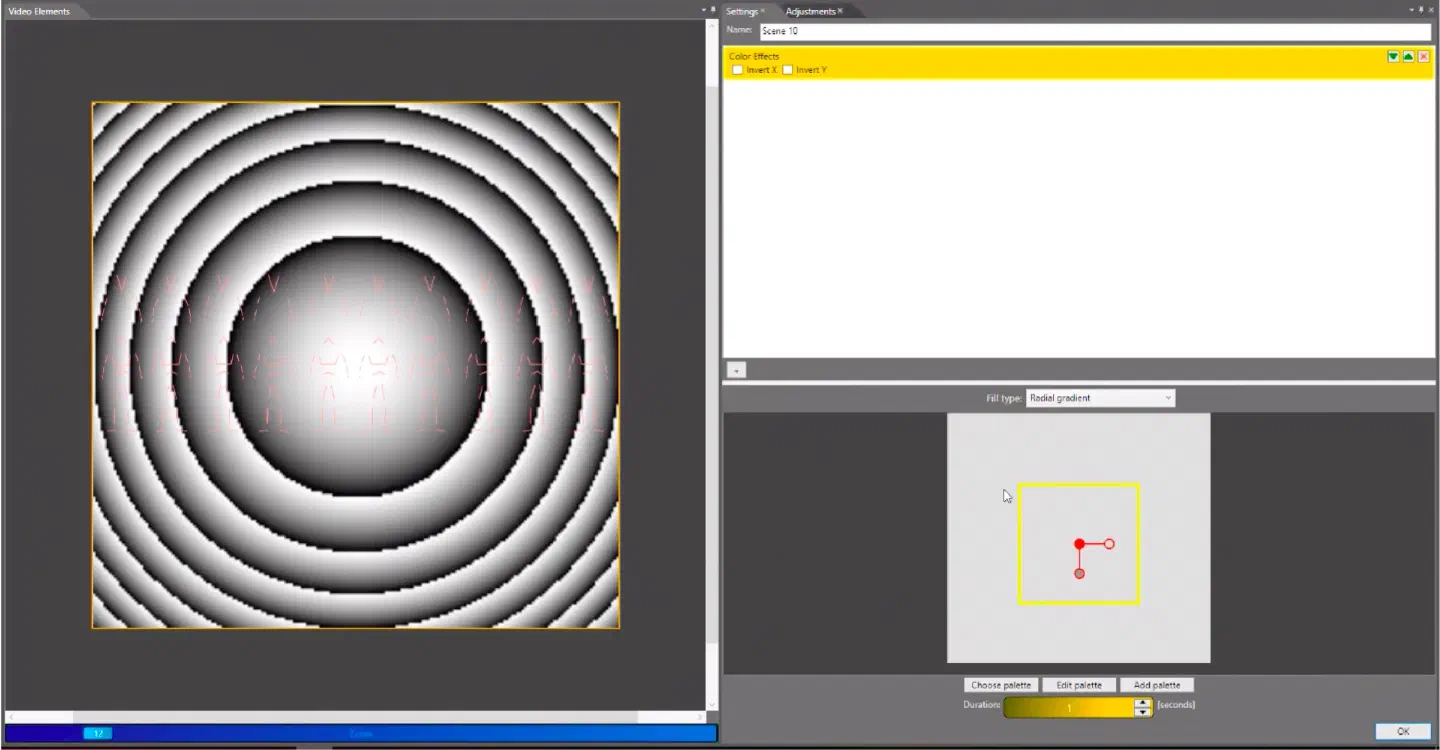
12:37 – 15:00 – How to create a video effect? – are you fed up with the simple analog effects? Let’s check what you can do with the video effects!
15:01 – 15:19 – How to save the show? – Basic stuff, how you can save your progress during the programming.
15:20 – 15:36 – Example of the show with the timeline – final product, how your show will look when it’s done!
Do you have any additional questions? Don’t hesitate to ask us anything, we are very happy to give you all the answers. You can do it here!